Inputs and the input editor
Inputs appear as tiles using the names and icons configured on the receiver — the same ones its own on-screen menu shows. Tap a tile to switch. Sources without a tile live in the INPUTS menu; the active one is always promoted to a tile so you can see what’s playing.
The input editor
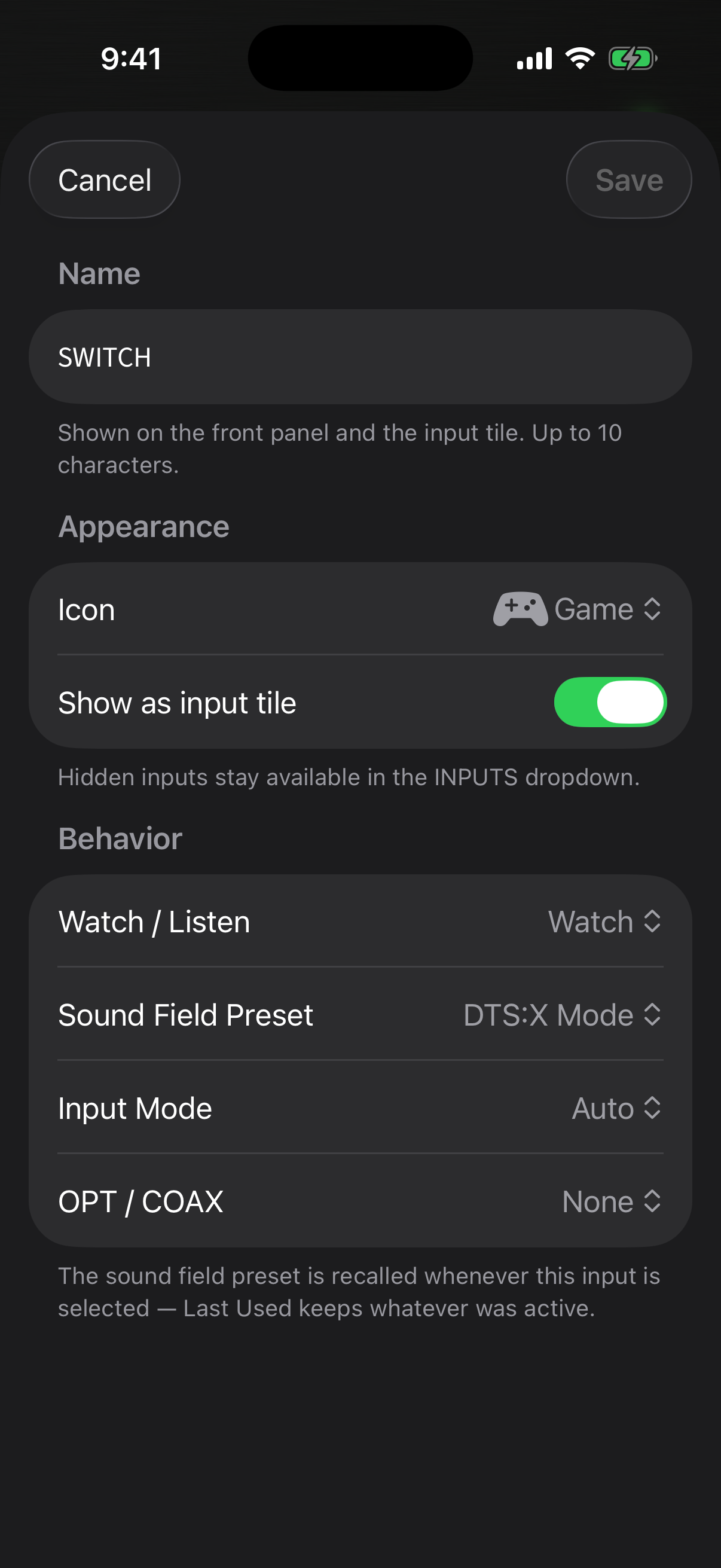
Long-press any editable input tile to open the editor. Everything you change is written to the receiver itself — the front panel and every other controller see it too:
- Name — up to 10 characters, shown on the front panel and the tile
- Icon — all twenty receiver icons, previewed in the picker
- Show as input tile — hidden inputs stay available in the INPUTS menu
- Watch / Listen — the receiver’s input category
- Sound Field Preset — recalled automatically every time this input is selected (“Last Used” keeps whatever was active)
- Input Mode and OPT / COAX digital audio assignment
The sound-field preset is the sleeper feature: give your game console DTS:X, your CD input 2ch Stereo, and the receiver switches processing the moment you change inputs.